
The Serpent Ops VS Code extension lets you pick up a Work Item and keep working in your editor, whether the project's repository lives in Serpent Source Control or a connected external Git provider. This guide covers both setups, plus returning to a project you already have cloned. New to these terms? Start with How Serpent Works: Key Concepts.
Prerequisites
Before you connect a project to VS Code, make sure you have:
- Visual Studio Code installed.
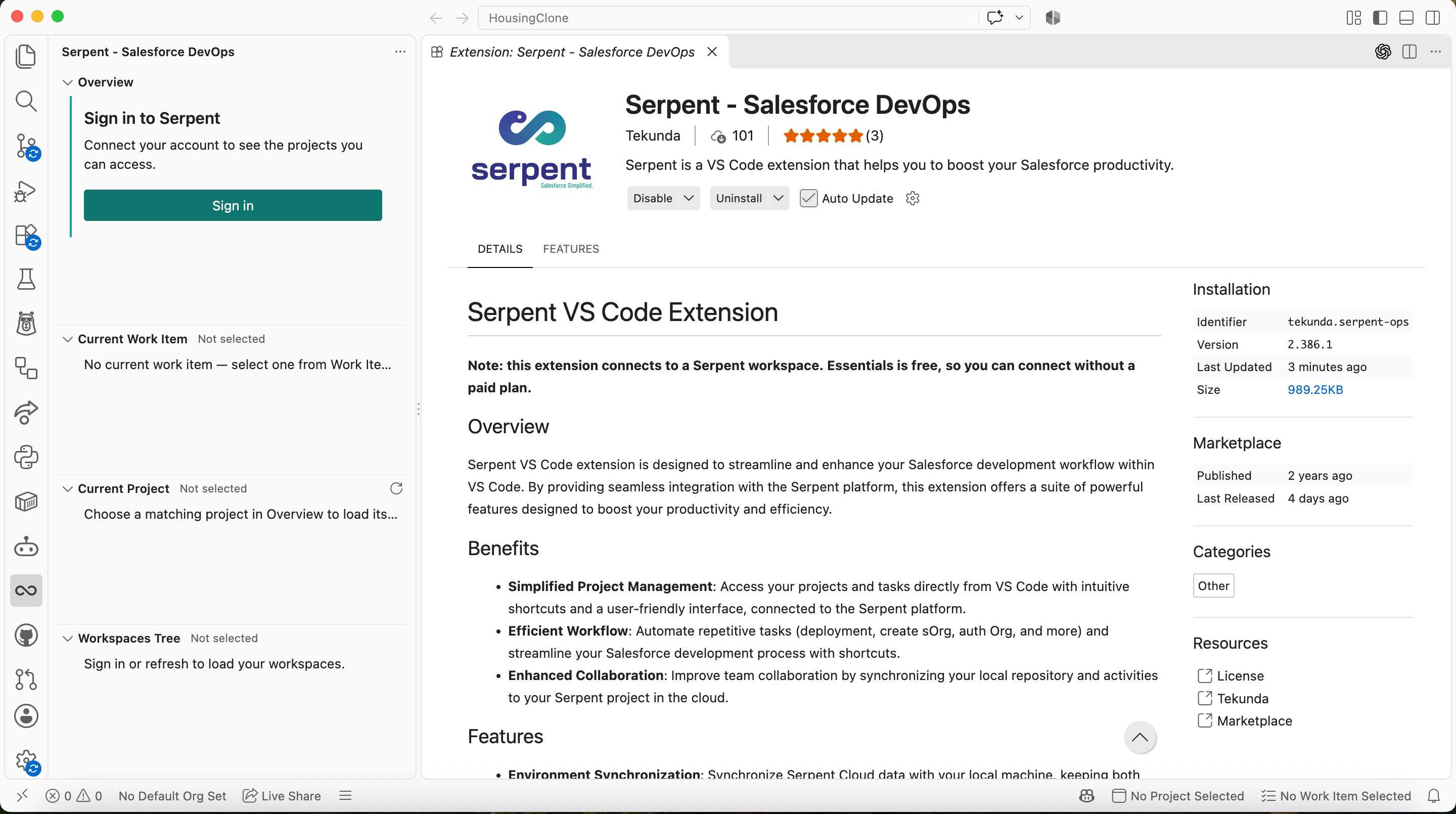
- The Serpent Ops VS Code extension installed and signed in. See Install and Use the Serpent VS Code Extension.
- A Serpent account with access to the relevant workspace and project. See Setup & Signing Up.
- Git installed locally.
- Access to the project's source control repository, whether that is Serpent Source Control or a connected external provider. See Source Control Integration.
- Permission to work on the relevant Work Item, assigned under Project Permissions & Member Assignment.
Serpent Source Control projects
Projects that choose Serpent as their source control provider host the repository in Serpent itself. The first time you work on one of these projects, follow this sequence.
-
Get added to the project
A workspace administrator adds you to the project and assigns you the Work Item. See Invite Users and Project Permissions & Member Assignment.
-
Accept the repository invitation
Serpent sends you an invitation to the project's repository. Open it and accept it using the same account you use to sign in to Serpent.
-
Confirm you can access the repository
Check that you can open the repository before you clone it. If you cannot, do not continue: see Troubleshooting below.
-
Clone the repository locally
Clone the repository using the URL from the invitation or from the project's Source Control settings.
-
Open the cloned folder in VS Code
Open the folder you just cloned as a VS Code workspace.
-
Install and sign in to the Serpent Ops extension
Add the extension from the marketplace, then sign in with your Serpent account from its sidebar.
-
Open the Work Item in Serpent
Open the relevant Work Item in Serpent, then select Open in VS Code.
-
Let the extension check out the branch
The extension identifies the project and checks out the Work Item's branch automatically, ready for your changes.
Important: accept the repository invitation before you clone the project or use Open in VS Code. If the invitation was sent to a different email address or account, contact your workspace administrator instead of trying to work around it.
If the invitation has expired
Ask your workspace administrator to send you a new invitation from the project's member list, then accept it with the same account you use to sign in to Serpent.
External source control projects
Projects connected to GitHub, GitLab, Bitbucket, or Azure DevOps keep the repository with that provider. Serpent still creates the Work Item's branch, but repository access and authentication happen with the provider directly.
-
Get access to the external repository
Confirm you have access to the repository in whichever provider the project uses, and accept any invitation the provider sends you.
-
Authenticate with the provider
Sign in using that provider's own supported authentication method.
-
Clone the correct repository
Clone the exact repository the project is connected to. If you are unsure which one, check Project Settings > Source Control in Serpent.
-
Open the cloned folder in VS Code
Open the folder you just cloned as a VS Code workspace.
-
Verify the remote matches the project
Confirm the repository's origin remote points to the same repository connected to the Serpent project. A mismatched remote is the most common reason the extension cannot find the Work Item's branch.
-
Sign in to the Serpent Ops extension
Install the extension if needed, then sign in with your Serpent account.
-
Open the Work Item and check out its branch
Open the Work Item in Serpent, select Open in VS Code, and let the extension select the project and check out the Work Item's branch.
Keep provider-specific steps separate: Serpent supports these four providers, and instructions written for a different Git host do not apply here.
Returning to an existing project
Once a repository is already cloned, picking a Work Item back up is shorter.
-
Open the existing local repository in VS Code
No need to clone again if you already have the project locally.
-
Confirm the Serpent Ops extension is signed in
Sign in again from its sidebar if you have been signed out.
-
Open the Work Item in Serpent
Find and open the Work Item you want to continue.
-
Select Open in VS Code
The extension brings VS Code to the front and switches branches for you.
-
Confirm the correct branch is active
Check the branch shown in VS Code before you start making changes.
Troubleshooting
The repository invitation was not received
Check your spam or junk folder first, then confirm your workspace administrator invited the correct email address. If it still has not arrived, ask them to resend it.
The repository invitation expired
Ask your workspace administrator to send a new invitation from the project's member list, then accept it right away. See If the invitation has expired above.
The invitation was accepted with the wrong account
Contact your workspace administrator so they can resend the invitation to the correct account. The wrong account will not have project access, so do not keep working from it.
You do not have repository permission
Confirm your workspace administrator added you to the project and assigned you repository access. This is an admin-only fix; you cannot grant yourself access.
The repository has not been cloned
Clone it first. See Serpent Source Control projects or External source control projects above, depending on where the project's repository lives.
The wrong project folder is open in VS Code
Close the current folder and open the correct cloned repository instead. VS Code, and the extension, only work against the folder that is open.
The local Git remote does not match the Serpent project
Check the repository's origin remote against the repository listed under Project Settings > Source Control. Re-clone from the correct URL if it does not match.
VS Code does not open after selecting Open in VS Code
Confirm VS Code is installed and set as your system's default handler for its URL scheme, then try again. If it still does not open, open VS Code manually and use the extension's sidebar to find the Work Item.
The Serpent Ops extension is missing or signed out
Install it from the marketplace if it is missing, or sign in again from its sidebar. See Install and Use the Serpent VS Code Extension.
The Work Item branch cannot be found
Confirm source control is connected for the project and that the Work Item still exists. If the branch was closed or removed, see Restore Work Item Branch.
Branch checkout is blocked by uncommitted changes
Commit or stash your local changes, then let the extension check out the branch again.
Git authentication fails during clone, fetch, pull, or push
Re-authenticate with your source control provider, or for Serpent Source Control, re-accept the repository invitation, and confirm your credentials have not expired. Contact your workspace administrator if authentication keeps failing after that.