
Serpent puts every Salesforce change under source control automatically. Your team works through Work Items instead of creating and merging branches by hand, while Serpent runs the underlying Git operations against the repository you already use.
Connect your Git provider
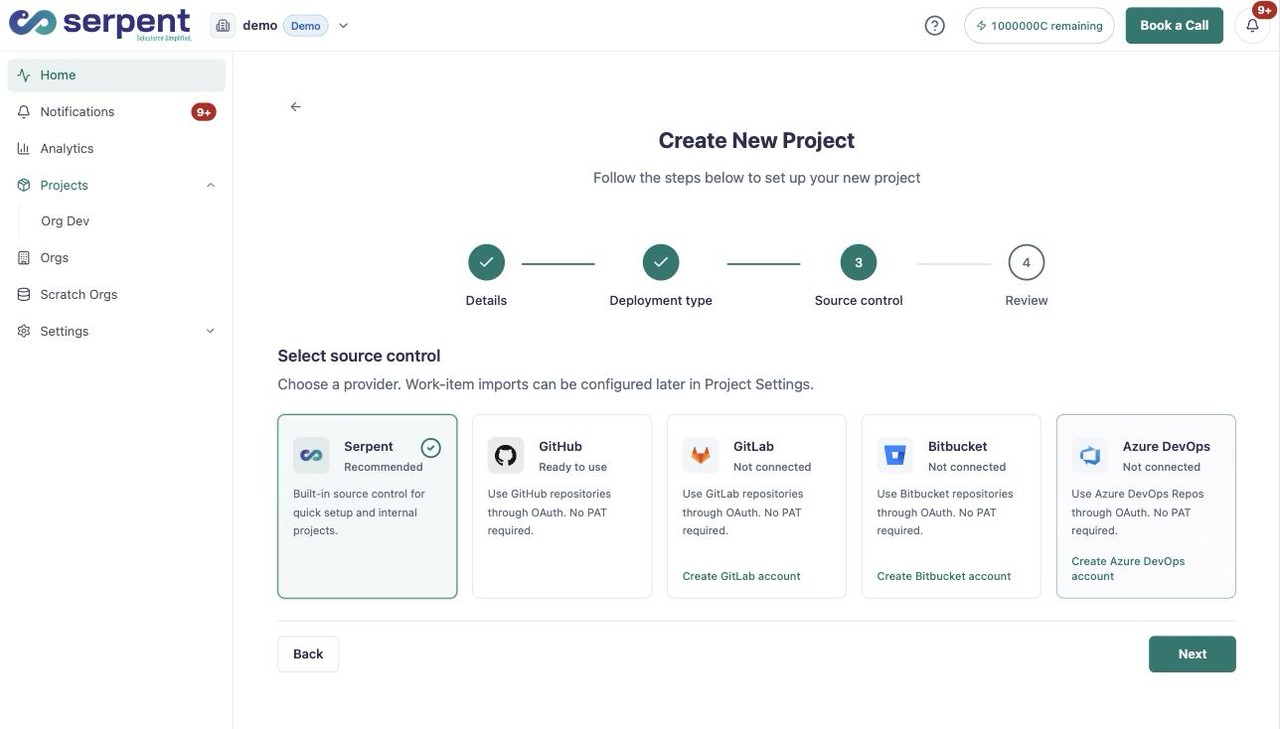
Provider connections live in your account Source Control settings. Open them with the "Try it in Serpent" button above, then:
-
Pick your provider
Choose GitHub, GitLab, Bitbucket, or Azure DevOps, the provider your team already uses.
-
Connect the repository
Link your repository. Serpent then commits tracked changes to it automatically and keeps full history.
Point a project at a repository
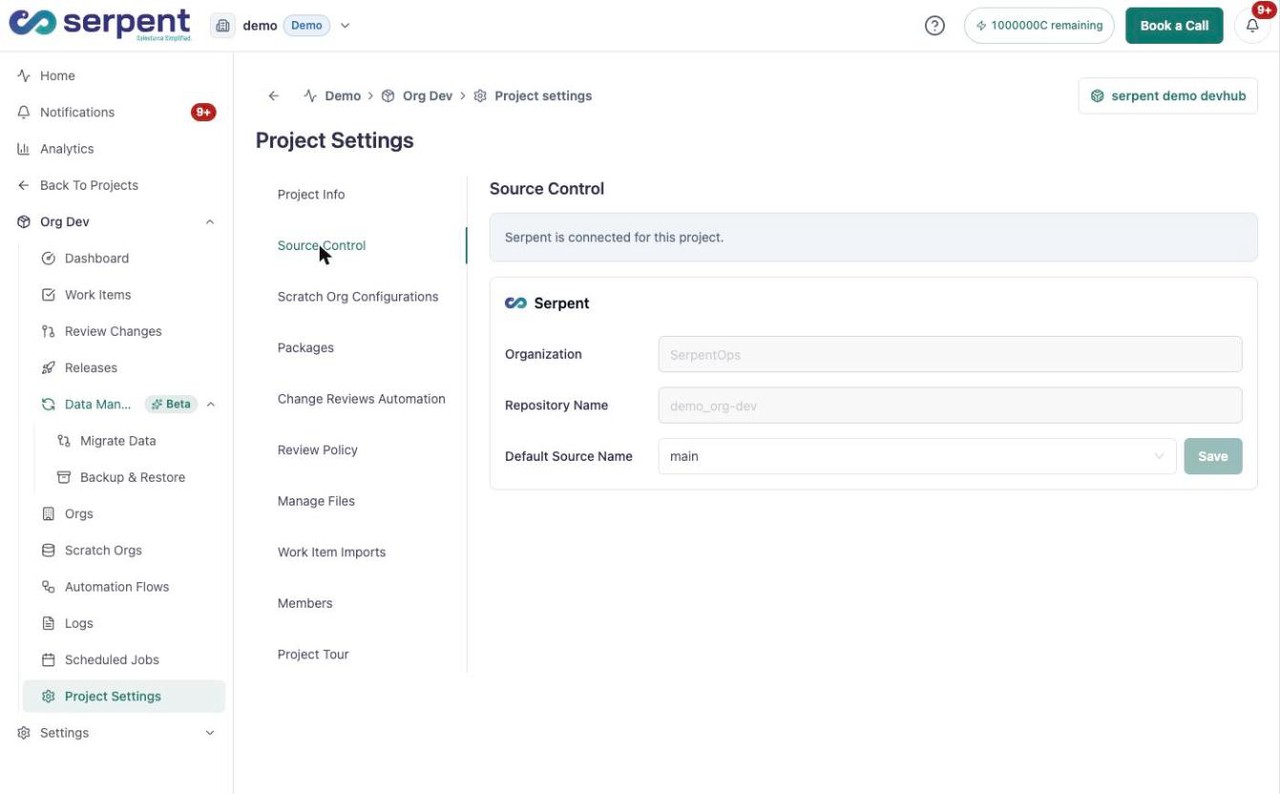
Each project points at one connected repository and its default branch, set under Project Settings -> Source Control. That tab is where you choose the branch Serpent works from - your branching strategy - not where providers are connected.
What Serpent tracks
- The metadata components each Work Item touches, tracked with source tracking.
- The branches and pull requests used for review.
- A timestamped history of what changed, who reviewed it, and when it deployed.
- The deployment history tied back to the changes that shipped.
Your repository remains the source of truth, so the work is portable and auditable outside Serpent as well.
Who it helps
Because Git runs in the background, admins who never touch a terminal work in the same flow as developers who do. Role-based permissions keep everyone scoped to what they need.