
Serpent MCP URL
Add the following remote MCP server URL in your AI client:
https://mcp.serpent.cloud/mcpBefore you start
You need:
- a Serpent account
- access to the relevant Serpent workspace and project
- an AI coding client that supports remote MCP servers and OAuth
- permission to perform any Serpent action you ask the client to run
Connect to Serpent
-
Add the remote MCP server
Open the MCP server settings in your AI coding client and add a remote server using
https://mcp.serpent.cloud/mcp.{ "mcpServers": { "serpent": { "type": "http", "url": "https://mcp.serpent.cloud/mcp" } } }That is the Claude Code and Cursor shape. Supported clients today include Claude, Cursor, Cline, Codex, Windsurf, and GitHub Copilot; each client's integration page carries its own snippet.
-
Start the connection
Start the connection from your AI client. When Serpent opens in your browser, sign in if required.
-
Review and authorize
On Authorize Serpent MCP Access, verify the requesting client, the redirect target, and the
serpent:mcpscope, then select Authorize.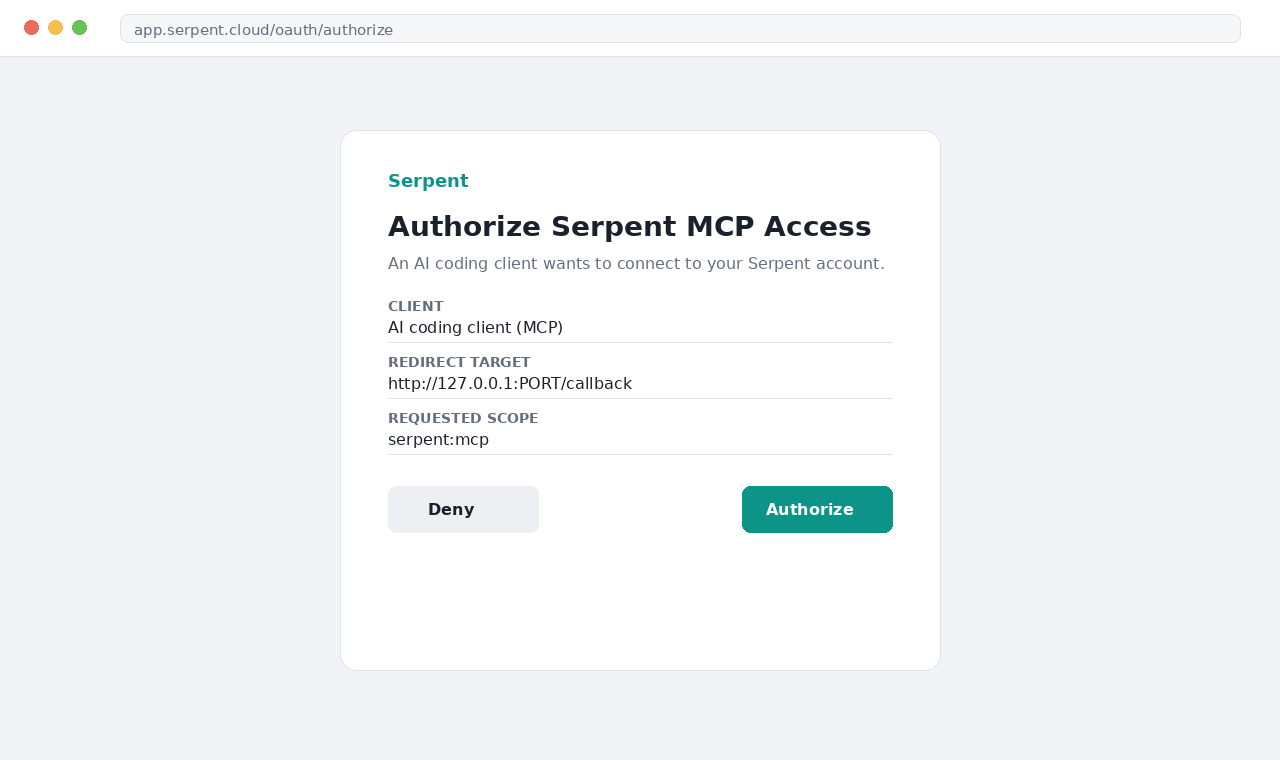
-
Confirm the tools are available
Return to your AI client and confirm that the Serpent tools are available. Serpent creates a scoped personal access token during authorization, and your MCP client stores and uses that token for future connections, so you do not need to generate or copy a token manually for this OAuth flow.
Review or revoke access
-
Open Account Settings
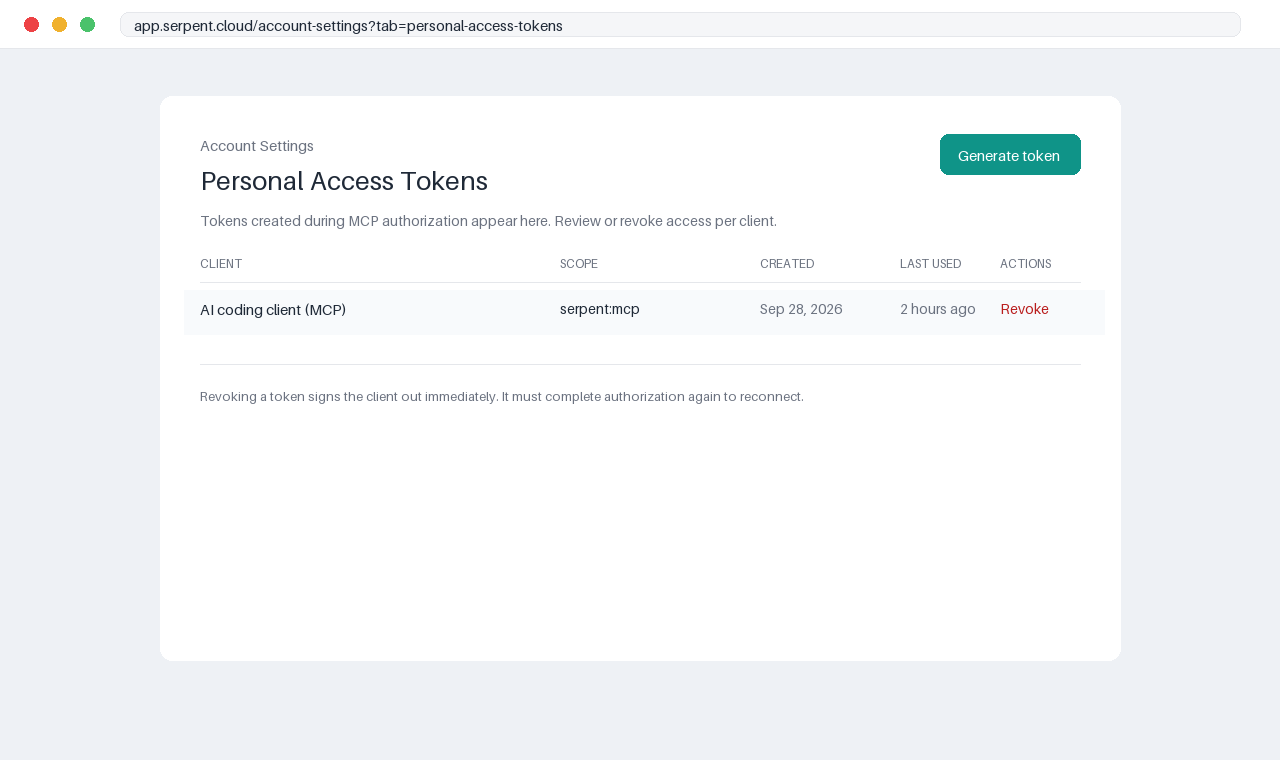
In Serpent, open Account Settings and select Personal Access Tokens. This is where the token Serpent created during authorization appears, and where you generate or revoke tokens for any MCP client.
-
Review the active token
Review the active token associated with your MCP client.
-
Revoke when you no longer trust the client
Select Revoke only when you want that client to lose access, then confirm the warning. Revocation takes effect for the selected token, and the client must complete authorization again before it can reconnect.
Start using Serpent
Tell the agent what you want to do and include the project or Work Item when relevant, for example:
- "Show me the open Work Items for the Acme project."
- "Prepare Work Item SER-123 for QA."
- "Deploy the changes in this repository to the QA org."
The agent resolves the available workspace, project, repository, and Salesforce org context, and may ask you to choose when more than one valid option is available. Review the resolved project, Work Item, org, deployment plan, or Automation Flow before approving any action that changes Serpent or Salesforce data.
Available workflows
Depending on your Serpent permissions and the tools exposed to your client, the agent can:
- find, create, and update Work Items
- inspect reviews and prepare approved changes for QA
- list and resolve Salesforce orgs
- create scratch orgs
- plan and run deployments
- run Automation Flows
- inspect deployment and Automation Flow results
Every tool is prefixed serpent_. A few you will reach for most:
deploy and pipeline tools such as serpent_plan_deploy,
serpent_execute_deploy_plan, and serpent_trigger_pipeline;
source control tools such as serpent_create_pull_request and
serpent_merge_pull_request; conflict tools such as
serpent_detect_metadata_conflict and
serpent_resolve_metadata_conflict; and context tools such as
serpent_get_workspace_context and serpent_resolve_target_org.
Every MCP-triggered action still runs through Serpent's preflight checks, AI
review, and mandatory human approval, and MCP access is included on the free
Essentials tier.
The MCP connection does not grant permissions beyond your Serpent account, and tool availability can vary by client and Serpent release. When a workflow creates a canonical Work Item branch, Serpent can switch your local repository to that branch, so commit or stash uncommitted changes first.
If you cannot connect
Serpent does not open for authorization
Confirm that the client supports remote MCP servers and OAuth, then verify that
the server URL is exactly https://mcp.serpent.cloud/mcp.
The authorization request is invalid or expired
Return to the AI client and start the connection again. Do not reuse an old authorization URL.
The Serpent tools do not appear
Confirm that authorization completed and that the client shows the Serpent MCP server as connected. Restart or refresh the client if its MCP server list is stale.
The agent cannot find the expected project, Work Item, or org
Confirm that the signed-in Serpent account has access to the expected workspace and project. Include the project, Work Item key, repository, or org name in the request when more than one option is available.
You connected the wrong client or no longer trust it
Open Account Settings, then Personal Access Tokens, and revoke the relevant token. Never share a token, authorization code, session value, or authorization URL in screenshots, recordings, support messages, or documentation.