
What retrieve means
A retrieve pulls metadata out of a Salesforce org into your tracked files, so the org is the source of truth and your files are updated to match it. It is the opposite direction of a deploy, which pushes local metadata into an org.
How Serpent keeps retrieve safe
Serpent tracks which direction every change is flowing as part of a task, so you never have to remember whether your next action is a retrieve or a deploy. Org comparison shows drift in both directions before either operation runs, so a retrieve does not silently discard local work. You can ask your connected AI client to scope a change, and Serpent prepares the right retrieve or deploy action for your approval.
Try it in Serpent
Open a Work Item with the "Try it in Serpent" button above, then:
-
Open Retrieve Changes
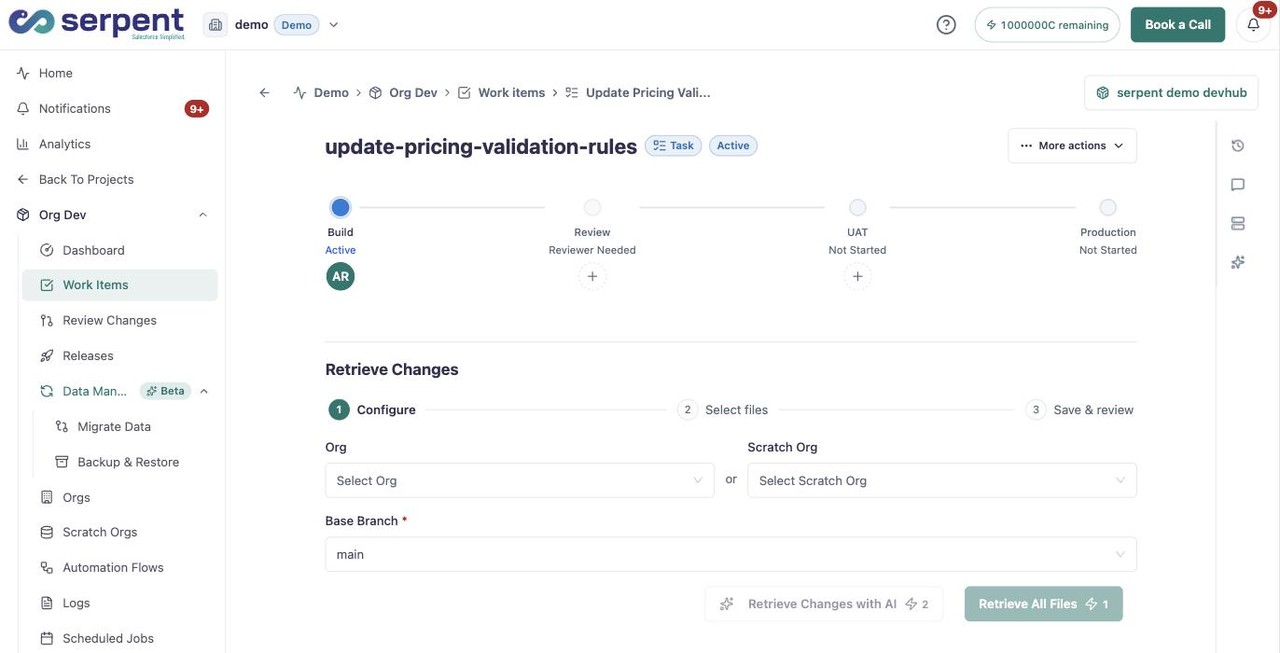
On the Work Item, open More actions and choose Retrieve Changes.
-
Retrieve Changes with AI
On the Configure step, choose Retrieve Changes with AI instead of Retrieve All Files to let Serpent scope what comes back.
Related
See Retrieve vs Deploy for the full comparison of the two directions.